How to Repair the Windows Boot Manager: Step-by-Step Recovery Guide
Updated Jul 2026
Some links on this page are affiliate links. If you buy through them we may earn a small commission at no extra cost to you. We only recommend what we'd use.
- Diagnose Boot Manager corruption causes, enter WinRE via power interrupt or USB media, execute targeted bootrec commands in Command Prompt, leverage System Restore when updates fail, and implement preventive maintenance.
Understanding the Windows Boot Manager and Why It Fails
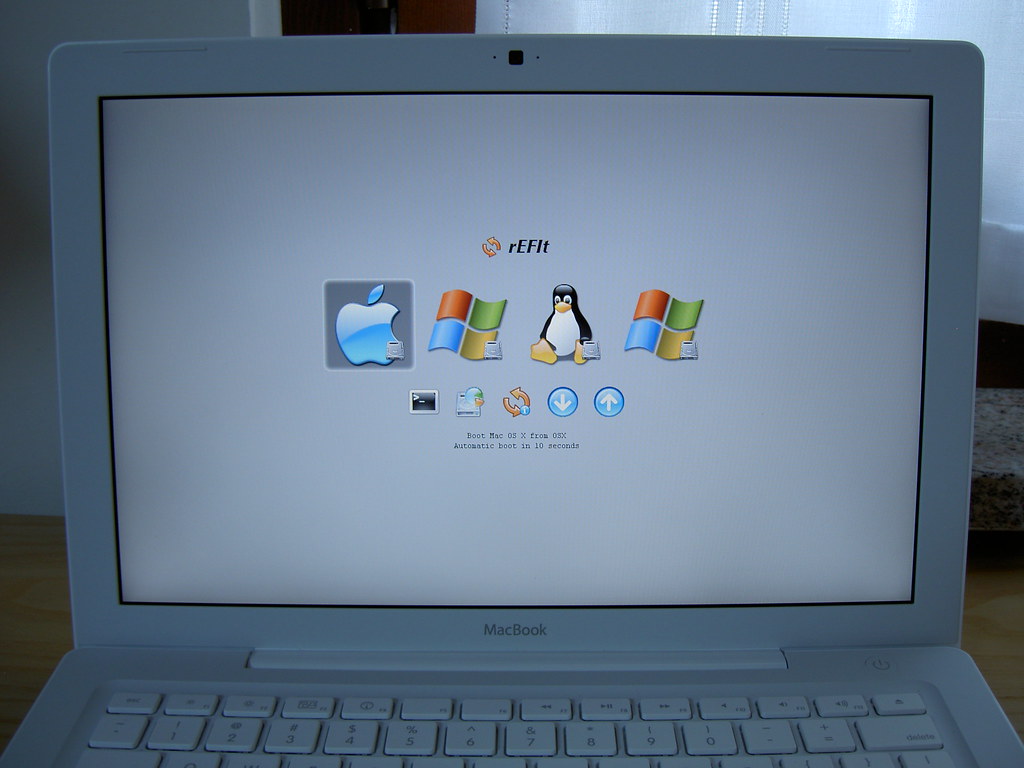
The Windows Boot Manager (BOOTMGR) is a small software component stored in your drive's system partition that reads startup configuration settings and loads the operating system kernel. Boot failures generally happen when unexpected updates, abrupt power loss, or storage drive degradation corrupt the Boot Configuration Data (BCD) registry file or disrupt UEFI/BIOS partition mappings. Unlike conventional desktop software, BOOTMGR runs before Windows finishes initializing. It relies on precise partition markers and intact file paths to locate `winload.exe`. Modern PCs with Unified Extensible Firmware Interface (UEFI) store these directives in an EFI System Partition, while older systems use a legacy Master Boot Record (MBR) setup on the primary disk volume. When sudden system crashes occur—especially during low-level registry writes or major system updates—the BCD file can drop critical pointers. Drive hardware issues, bad SATA/NVMe connections, or secondary drive installations that alter drive-letter designations can similarly cause BOOTMGR to throw errors like `0xc000000e` or display a simple "Boot Manager is Missing" screen.Accessing the Windows Recovery Environment (WinRE)

Booting from Installation Media
Booting from a Windows USB drive bypasses corrupted local boot files entirely, providing an isolated environment to fix software glitches. Create bootable media using Microsoft’s Media Creation Tool on a secondary working PC, insert it into the broken computer, enter BIOS/UEFI to set USB as the primary boot target, and launch setup. Once the USB installer loads, select your default keyboard layout and regional language settings, then click **Next**. On the following screen, do not click "Install now." Instead, click the small **Repair your computer** link located in the bottom-left corner. This launches WinRE directly from your media, bypassing broken internal boot sectors.Using the Automatic Repair Tool
Automatic Repair scans critical system configuration settings, disk integrity, and startup files to fix standard boot errors without requiring manual command inputs. In WinRE, navigate to **Troubleshoot > Advanced options > Startup Repair**. The utility reboots your computer, analyzes system registries, and attempts to resolve corrupted files automatically. The tool tests disk sector reads, checks registry integrity, verifies bootloader configuration settings, and patches missing system drivers. Depending on system drive speed and the extent of file damage, this diagnostic phase can take anywhere from a few minutes to half an hour. Keep in mind that Automatic Repair works best on basic software interruptions. If an underlying BCD file is entirely missing or physically damaged, Automatic Repair might report that it "couldn't repair your PC." When that happens, moving on to manual command line repairs is your best course of action.Employing Command Prompt for Advanced Repairs
Command Prompt inside WinRE gives you direct access to low-level disk and boot recovery utilities. Open **Troubleshoot > Advanced options > Command Prompt** to manually inspect drive letters, repair damaged Master Boot Records, write clean boot sectors, and rebuild broken Boot Configuration Data stores across internal storage partitions. Inside the WinRE Command Prompt, drive assignments often shift. Your primary system volume might appear under `D:` or `E:` instead of `C:` because the recovery environment creates a temporary RAM drive assigned as `X:`. Running `diskpart` followed by `list volume` helps confirm exact drive assignments before executing boot recovery tools.Key Command Prompt Commands
Key repair commands include `bootrec /fixmbr` to overwrite corrupt legacy master boot records, `bootrec /fixboot` to write a clean boot sector, `bootrec /scanos` to detect unlinked Windows installations, and `bootrec /rebuildbcd` to reconstruct your startup entries from scratch when Windows fails to locate system files. * **`bootrec /fixmbr`**: Writes a system-compatible Master Boot Record to the boot partition without overwriting existing partition tables. Useful for legacy BIOS setups. * **`bootrec /fixboot`**: Appends a clean boot sector onto the system partition. If you receive an "Access is denied" error here, you may need to assign a drive letter to your hidden EFI partition using `diskpart` and format it as FAT32 first. * **`bootrec /scanos`**: Searches connected storage drives for installed Windows operating systems that are not currently referenced in the BCD store. * **`bootrec /rebuildbcd`**: Scans drives for Windows installations and prompts you to add them to the BCD menu. Typing `Y` (Yes) when an installation is identified rebuilds your boot catalog completely. Once these execution steps finish, close the Command Prompt window and click **Continue** to reboot into normal Windows.System Restore as a Potential Solution
System Restore reverts Windows system files, drivers, and registry settings to an earlier functional state without deleting personal files. Access it in WinRE via **Troubleshoot > Advanced options > System Restore**, pick a restore point dated prior to your boot issue, and let the process complete automatically. This recovery option proves especially useful if BOOTMGR errors started right after a major Windows feature update, graphics driver install, or third-party security software upgrade. System Restore rolls back registry modifications that may have orphaned critical boot parameters. Keep in mind that any applications, updates, or drivers installed *after* the selected restore point's timestamp will be removed. Your personal documents, photos, and general user files remain unaffected.Comparing Recovery Options: A Quick Reference
Windows boot repair tools range from simple automated diagnostic scripts to advanced command-line interventions. Choosing the right method depends on whether your system suffers from minor file glitches, recent bad driver updates, or complete bootloader store corruption, with manual command-line repairs generally offering the highest success rate. | Tool | Best For | Pricing Tier | Standout Feature | |---|---|---|---| | Startup Repair | Minor file corruption, automated recovery | Free (built-in) | One-click automated scan and fix | | Command Prompt (bootrec) | Corrupted BCD, missing MBR, EFI errors | Free (built-in) | Granular repair control over boot entries | | System Restore | Post-update crashes, bad driver installs | Free (built-in) | Reverts system state without personal data loss | | Installation USB Media | Severe corruptions where WinRE won't load | Free (self-created) | Completely independent external environment | 1. **Startup Repair:** Recommended initial test for non-technical users facing minor boot glitches. 2. **Command Prompt (bootrec):** Most reliable option when handling persistent BCD or boot sector errors. 3. **System Restore:** Primary choice when software changes or update bugs render system drives unbootable. 4. **Installation USB Media:** Mandatory backup approach when local recovery partitions are wiped or missing.Preventing Future Boot Manager Issues
Prevent recurring boot corruption by keeping drive firmware updated, disabling Fast Startup to avoid hybrid hibernation locks, maintaining regular image-based system backups, and ensuring power stability during Windows updates. Checking drive health using SMART diagnostic tools regularly also prevents sudden boot partition failures caused by decaying hardware. Fast Startup saves system kernel state info to a hibernation file upon shutdown to speed up start times. However, this feature occasionally locks boot partitions, preventing system tools from writing critical boot updates correctly. You can turn off Fast Startup through Windows Control Panel under Power Options or by typing `powercfg /h off` inside an elevated Command Prompt. Using an Uninterruptible Power Supply (UPS) for desktop workstations prevents unexpected system shutdowns during delicate Windows Update cycles, protecting your BCD registry file from abrupt corruption.What to Expect After Repair
Following a successful boot manager repair, your system will restart and take slightly longer than usual to reach the desktop while rebuilding file indexes. Windows may initiate a Chkdsk background check upon startup to verify storage integrity, and drivers restored from earlier points might request a reboot. Once desktop access returns, open an elevated Command Prompt inside Windows and run `sfc /scannow` to verify that no secondary system files remain damaged. If background disk errors persist, back up critical data immediately and run drive manufacturer diagnostics to evaluate your storage drive's physical health.FAQ
What does a "Boot Manager is missing" error mean?
This error means your computer's BIOS or UEFI cannot locate the BOOTMGR file or BCD partition pointers required to load Windows. It usually stems from corrupted boot configuration files, detached hard drives, incorrect boot order settings, or failing storage hardware.
Can I fix this myself, or do I need a professional?
Most users can resolve Boot Manager issues independently using built-in Windows Recovery Environment tools or running basic command line scripts like `bootrec /rebuildbcd`. If your internal storage drive suffers physical hardware damage or bad sectors, professional data recovery services may be required.
Will repairing the Boot Manager delete my personal data?
No. Standard boot repair procedures, including `bootrec` commands, Startup Repair, and System Restore, only modify system configurations, boot sectors, and Windows registry files. Your personal photos, documents, and saved files remain untouched on the storage volume.
Why does the command prompt show different drive letters than File Explorer?
WinRE runs off a separate temporary RAM disk and assigns drive letters dynamically based on detection order. Consequently, your primary Windows drive (normally C:) might be labeled D:, E:, or another letter within the WinRE command interface.
How can I prevent Boot Manager errors from happening again?
Maintain consistent system backups, disable Windows Fast Startup, avoid forcing hard power shutdowns during system updates, and run storage health checks periodically. Additionally, ensure your system drive firmware remains updated to prevent partition table drops.